
wctel.net email discontinuation
Scroll down this page to find out why we are discontinuing the wctel.net emails and tips on creating a new account.
What’s happening?
Due to increasing security threats and attempts by hackers to compromise email accounts, we have made the decision to discontinue our wctel.net email service. We understand this change may feel overwhelming, but we’re here to help you every step of the way.
Overview of changes
- Now: Time to set up your new email address (how-to details below)
- January 2027: wctel.net email services will end completely
Why we’re making this change
Your security is our top priority. Many email providers now offer advanced security features that better protect you from scams and hackers. By moving to these services, you’ll have a more secure way to communicate online.
What you need to do
- Create a new email address
- You can get a free email address from services like Gmail (gmail.com). To set up a Gmail account:
- Go to gmail.com
- Click “Create Account“
- Follow the simple step-by-step instructions
- Choose an email address you like (example: [email protected])
- You can get a free email address from services like Gmail (gmail.com). To set up a Gmail account:
How we’ll help
- Free email setup classes:
- West Carolina will be offering free classes to help you with this transition! Our team of helpful representatives will be available to:
- Help you create your new email account
- Show you how to use your new email
- Set up email forwarding
- Answer all your questions
- Watch your email, our social media channels, and website for announcements about upcoming class dates and times.
- West Carolina will be offering free classes to help you with this transition! Our team of helpful representatives will be available to:
- We understand this change may feel challenging, and we want to make it as easy as possible for you. If you need help:
- Call NRTC (864) 446-INET
- Email us at [email protected]
- Attend one of our upcoming email setup classes
Creating a new email
Auto-reply and forwarding
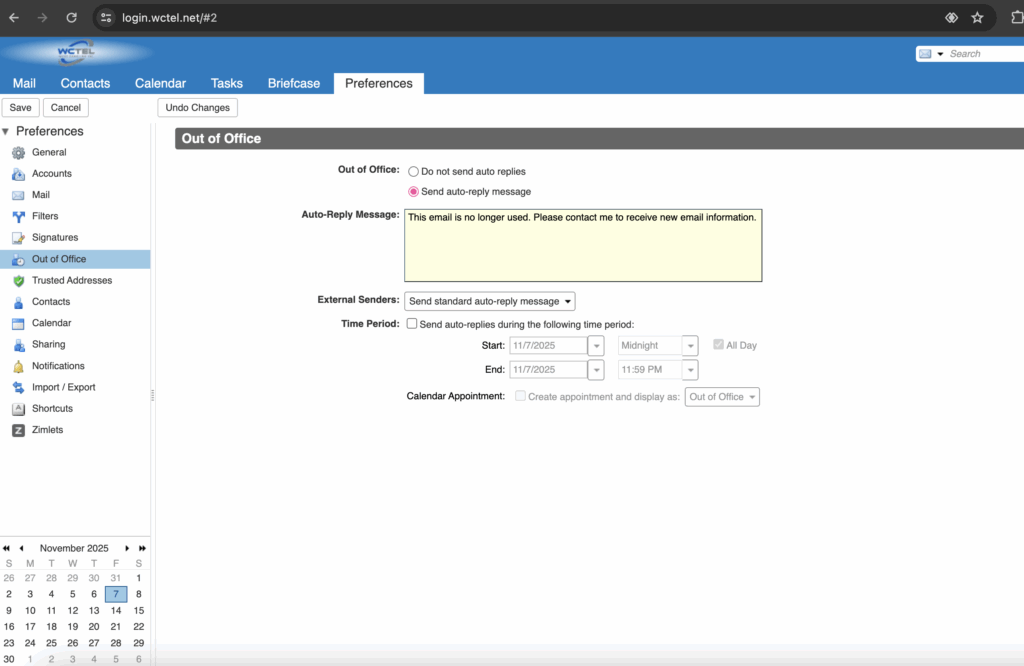
Select “Preferences” then “Out of Office” then “send auto-reply message”.
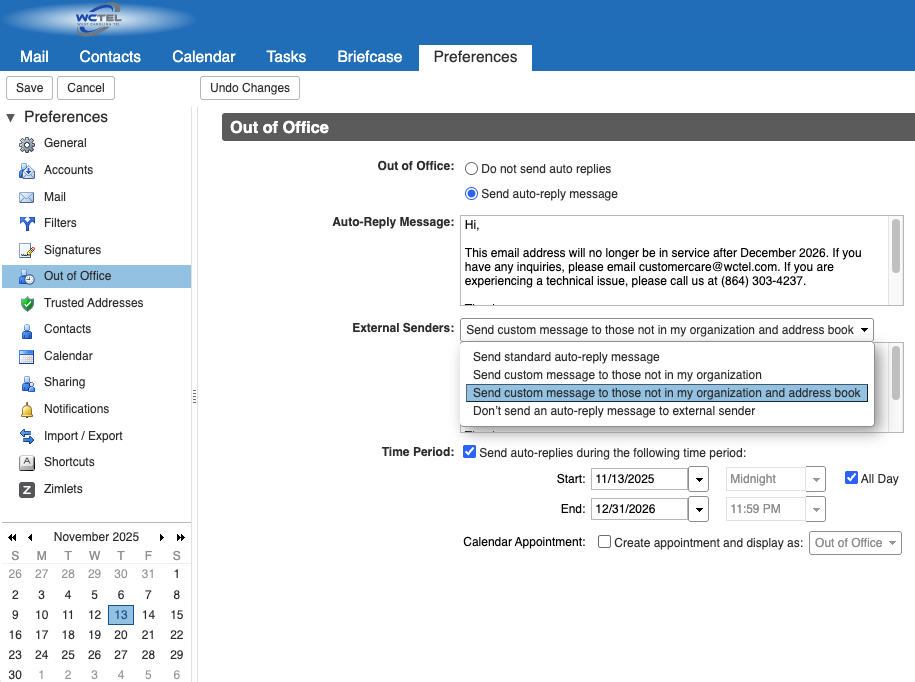
Type the message you would like other emails to receive. Also make sure to use the drop-down box to select “Send custom message to those not in my organization and address book”, then type what you would like the to receive.
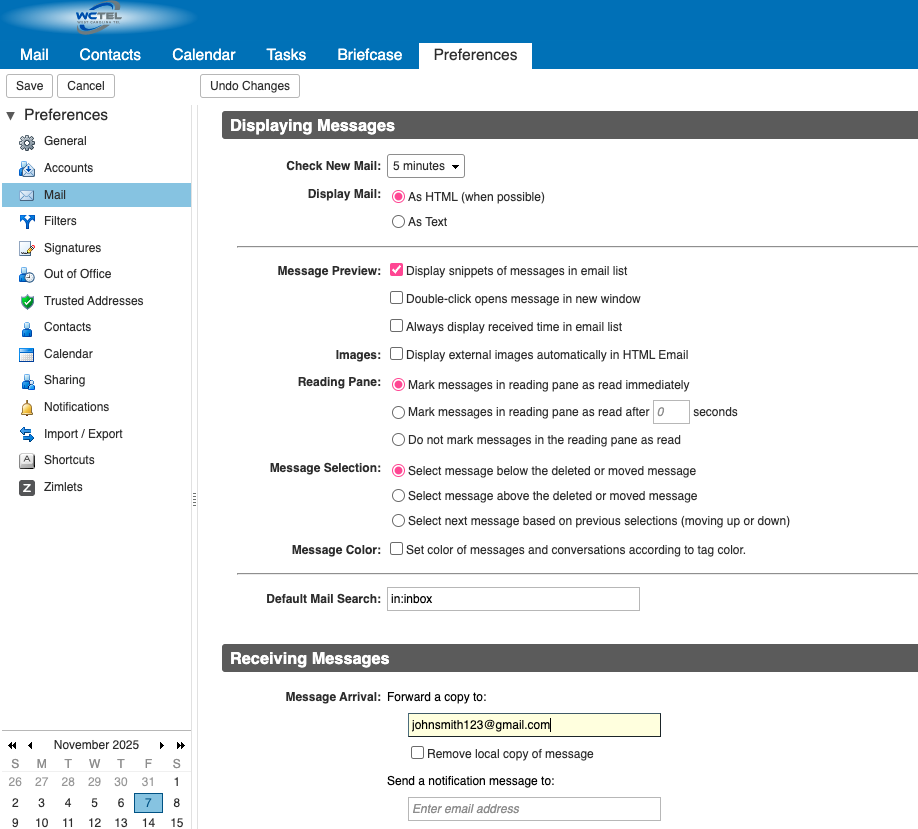
Select “Preferences” and “Mail”. Scroll to “Receiving Messages” and type your new email address in the box under “Message Arrival”.